Installation & Configuration
Before you can use your konversaitional Teams assistant, your IT department should have:
- Create the necessary resources in Microsoft 365 and Azure
- Set up the teams assistant in the konversaitional platform
- Set up security in such a way you are allowed to have access to the Teams assistant
This guide assumes these steps have already been executed successfully.
Adding the Teams assistant
Adding the app
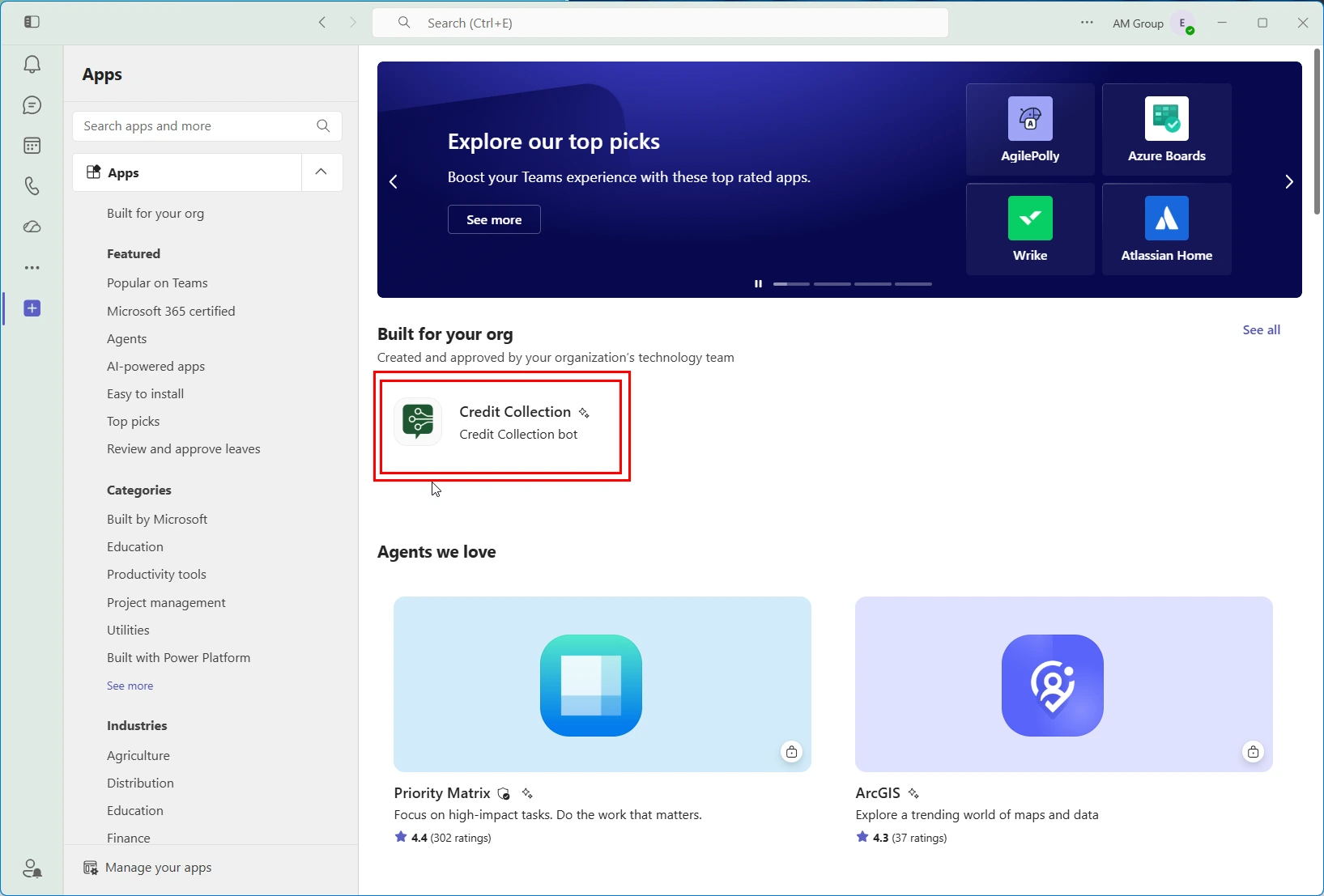
Go to MS Teams, in the left menu click the + icon that allows you to add Apps. If all is configured correct, you should be able to see the konversaitional assistant app (or apps, there can be multiple) in the list "Built for your org".
Review the details
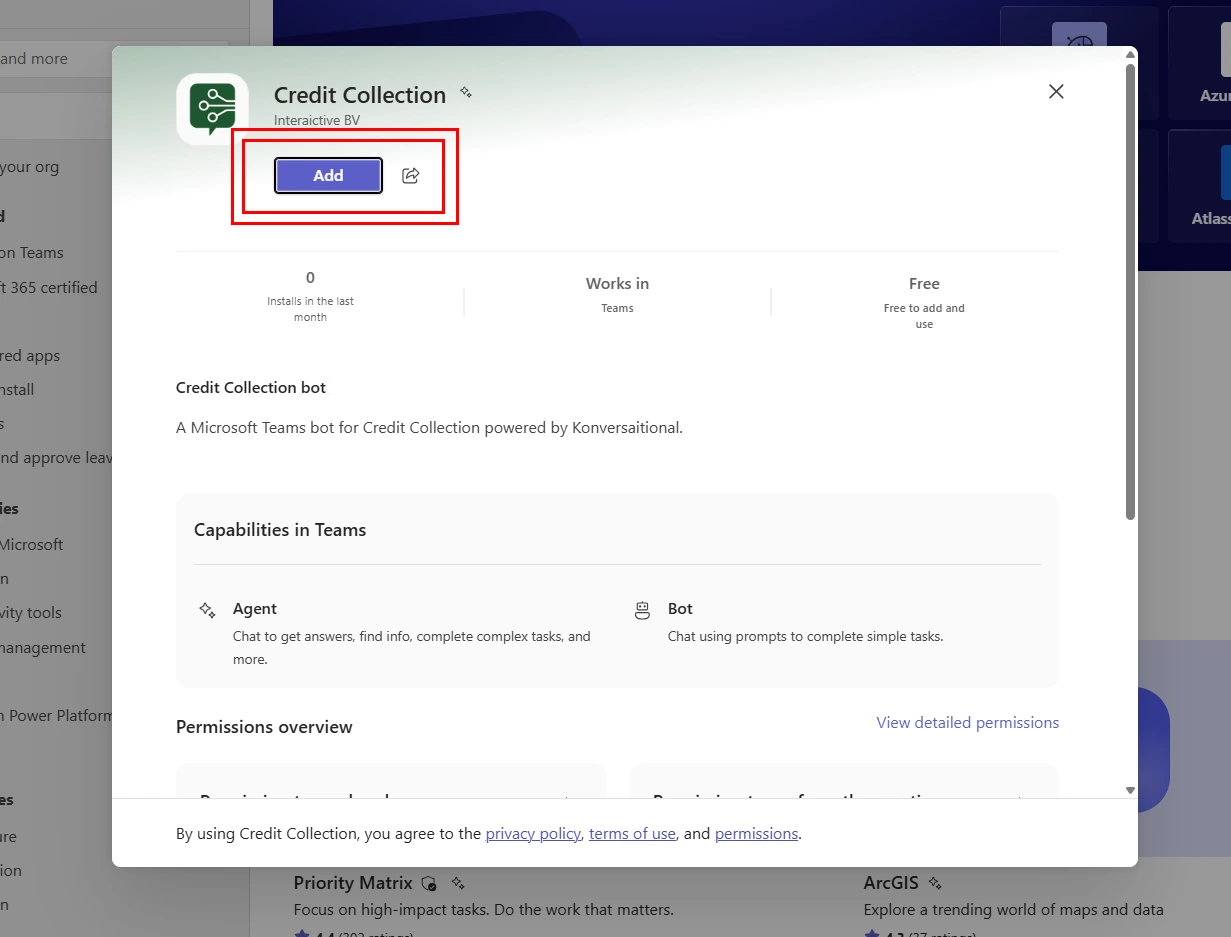
Click the app and this dialog will open. Review the details, make sure you have the right assistant if multiple are available. Click Add again.
Open the app
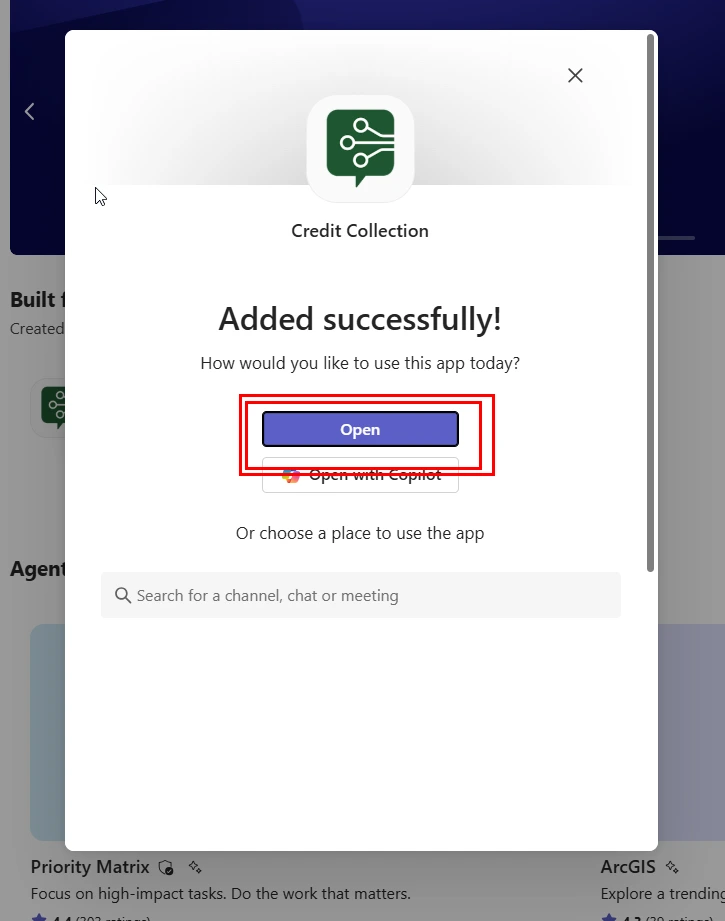
If the app is successfully added click the Open button.
Pin the app
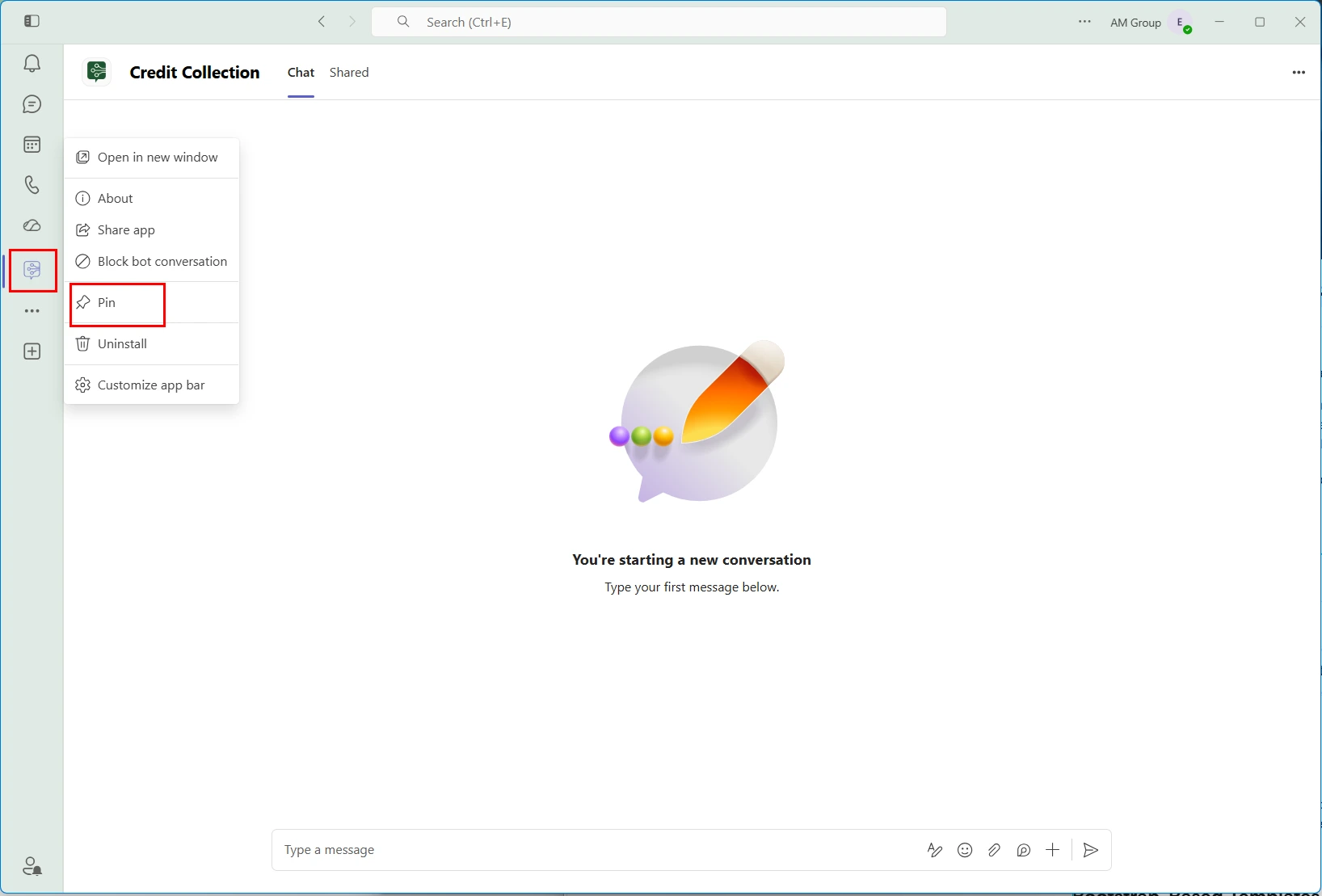
After adding the app, it appears in the lef sidebar with the konversaitional icon. You'll notice if you switch to other conversations or chats, the icon might disappear. To avoid this, right click the icon and click "Pin".
Use your assistant
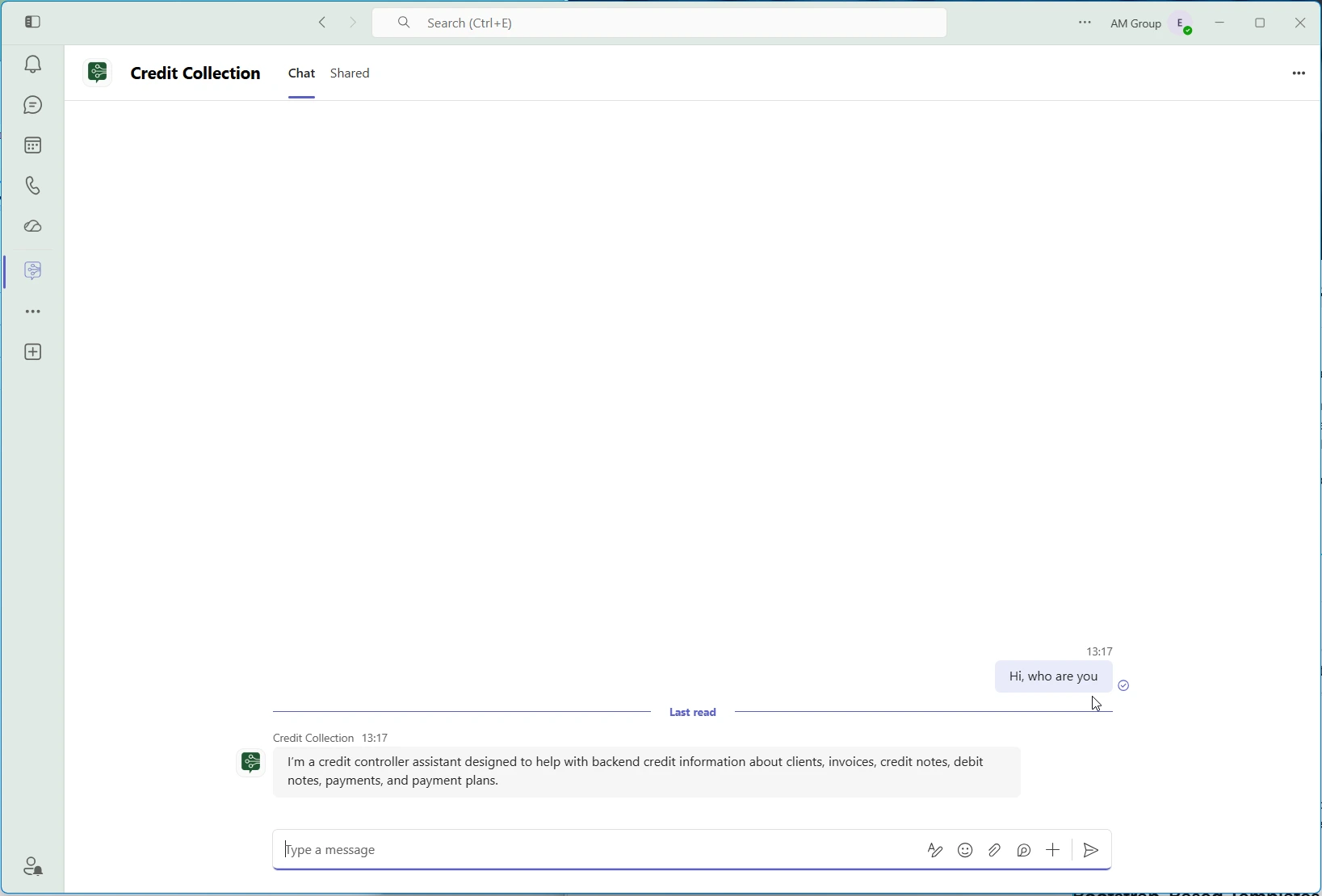
Now you are set up to use the assistant. Say a simple Hi or ask your questions immediately.